


You can create a Telegram group in a few taps. Pick New Group, add members and give it a name. For a Secret Chat, start from your contact’s profile. The important choices come after setup: who can join, what new members can see and how much control moderators get.
For a group of friends, the default settings may be enough. A team chat or a community that recruits members from several channels needs clearer access rules. A leaked invite can let in outsiders or turn approval requests into a moderation backlog.
This guide covers group setup on Android, iPhone, desktop and the web, then explains when a one-to-one Secret Chat is useful.
Group, Secret Chat, or Channel: What to Choose
A group is a shared conversation for members, a Secret Chat is an end-to-end encrypted conversation between two people on their respective devices, and a channel is a broadcast where admins publish updates.
| Group | Secret Chat | Channel | |
| Who can post | all permitted members | two people | admins |
| Number of people | up to 200,000 | two | unlimited |
| Where stored | in Telegram cloud | only on two devices | in Telegram cloud |
| Where accessible | on all your devices | only where started | on all your devices |
Regular chats, including groups, are encrypted using a “client-server” scheme: conversations are stored on Telegram’s servers, so you can access them from any phone or laptop. In a secret chat, encryption is end-to-end—only the two devices have the keys, and no third party can read the messages, according to Telegram itself, not even Telegram.
How to Create a Telegram Group: Step by Step
Start a new message, choose New Group, select the members and enter a name. The location of the buttons depends on the app.
How to Create a Group in Telegram on Android
On Android, it all starts with the floating button at the bottom of the chat list.
- In the chat list, tap the round button with a pencil.
- Select “New Group.”
- Pick members from your contacts or search by username, then tap the arrow.
- Enter a name, add a photo if you want, and tap the checkmark.
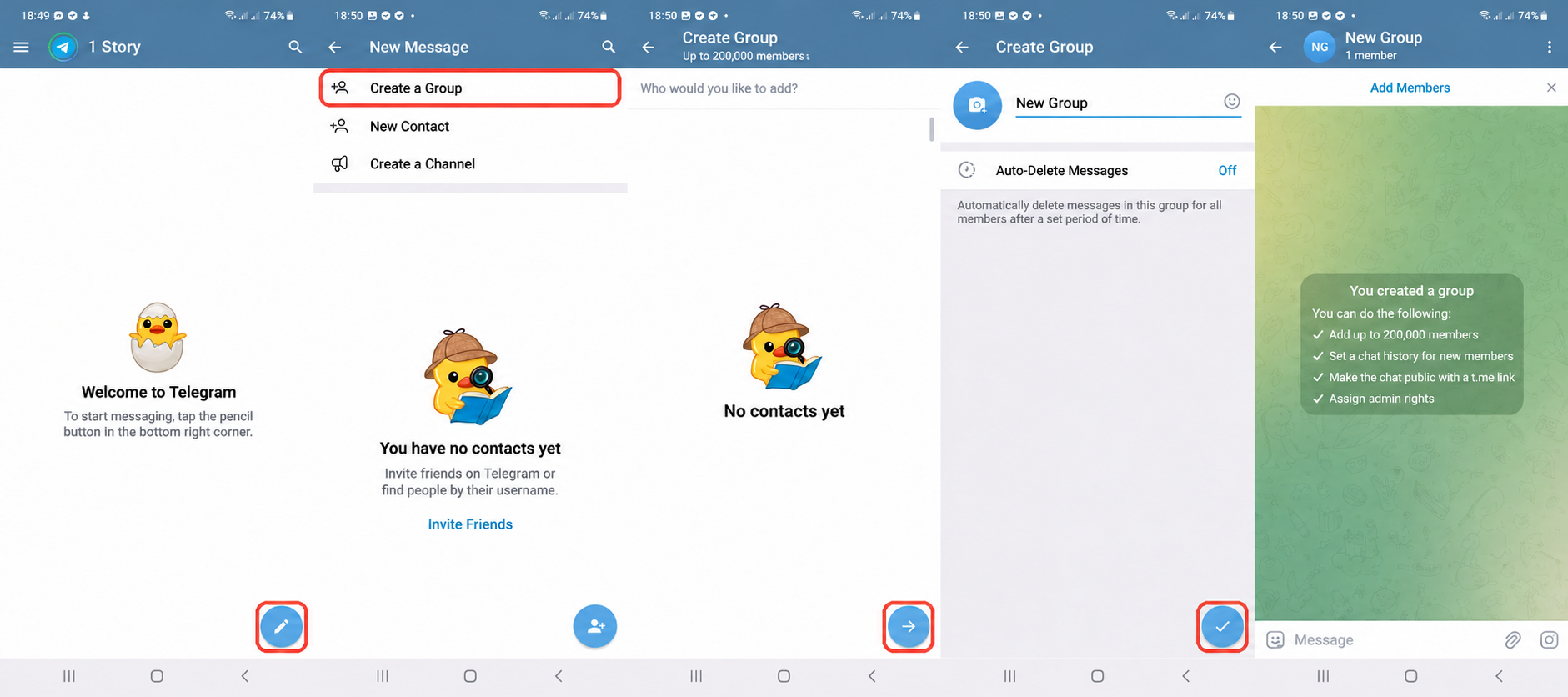
The group will appear at the top of your chat list. For those not in your contacts, it’s easier to invite them via a link—how to set it up is explained in the invitation section.
How to create a group in Telegram on iPhone and iPad
On iPhone and iPad, the new chat button is at the top.
- On the “Chats” tab, tap the new message icon in the top right corner.
- Select “New Group”.
- Choose members and tap “Next”.
- Enter a name and tap “Create”.
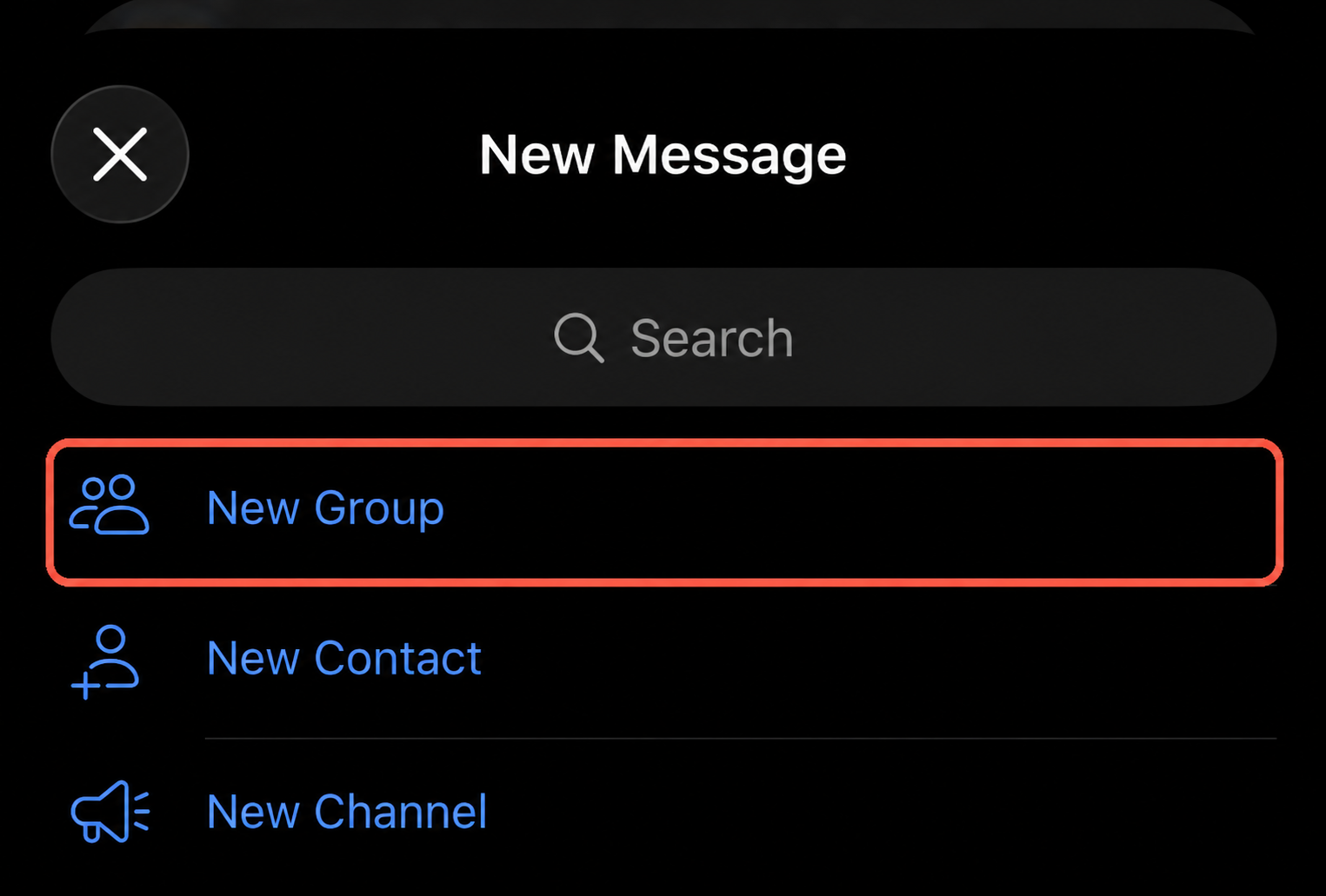
“New Message” screen on iPhone: “New Group” is the first option, and there’s no secret chat in this menu—it starts from the contact’s profile
Just like on Android, the group will immediately be at the top of your chat list.
How to create a group on desktop and web version
Telegram Desktop, the native Telegram app for macOS and Telegram Web have different menus. Follow the steps for the client you use.
- Telegram Desktop (Windows, Linux, in Mac App Store it’s Telegram Lite): menu button with three lines in the top left corner → “New Group”, then set the name and select members.
- Telegram for macOS: new message button above the chat list → “New Group”, then add members and name.
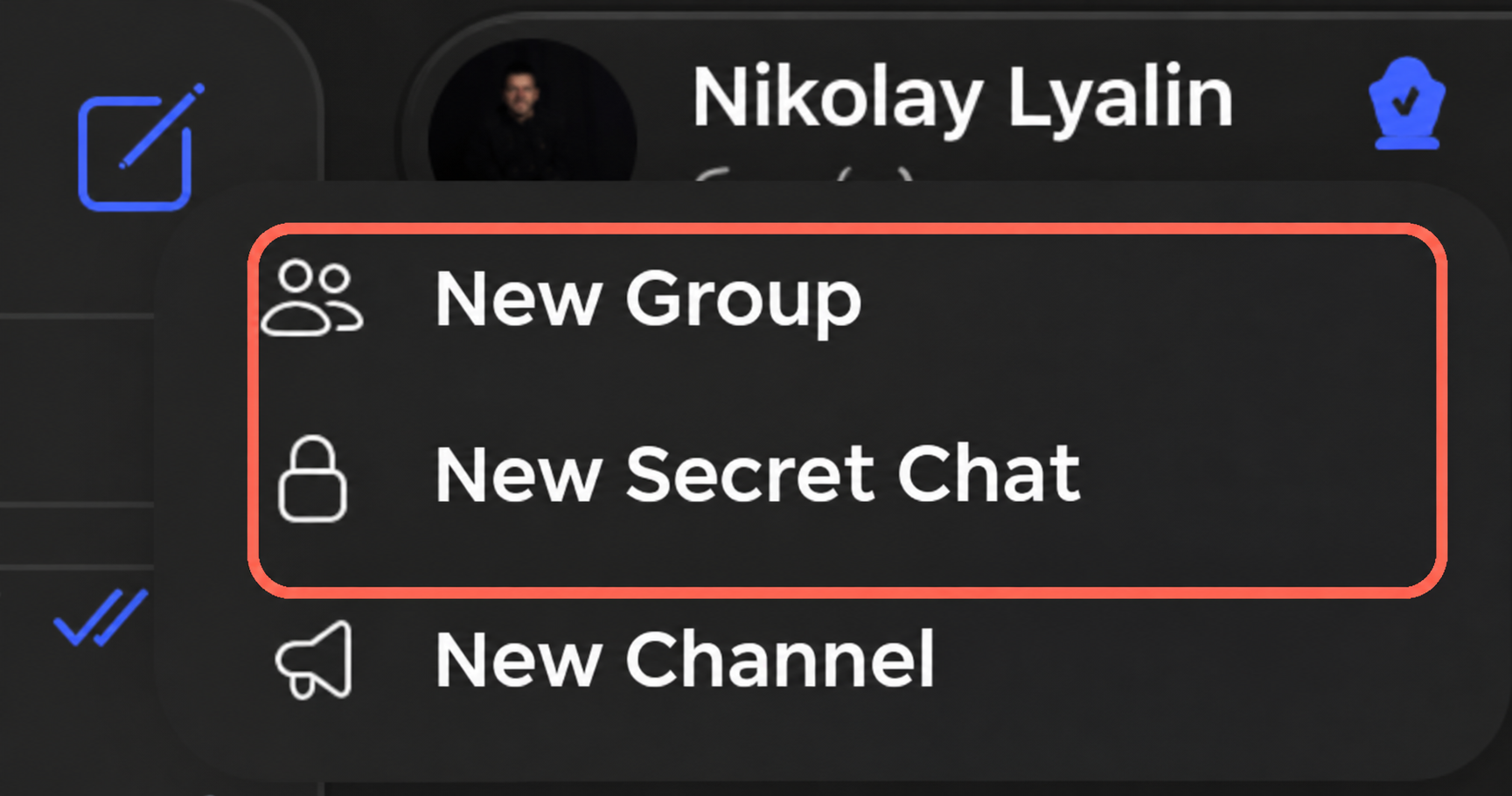
- Web version web.telegram.org: round button with a pencil at the bottom of the chat list → “New Group”, then add members and name.
All three desktop options support groups. Of those, only the native macOS app also supports Secret Chats.
Settings to Review After Creating a Group
The new group is already private: according to Telegram rules it doesn’t show up in search, and you can only join by invitation or link. Everything else is open by default: members see each other and can copy the chat history.
Almost all settings are gathered in one place. On Android, tap the group name at the top and the pencil icon; on iPhone, tap the group photo and “Edit”; in Telegram Desktop, click the ⋯ icon and “Manage Group”.
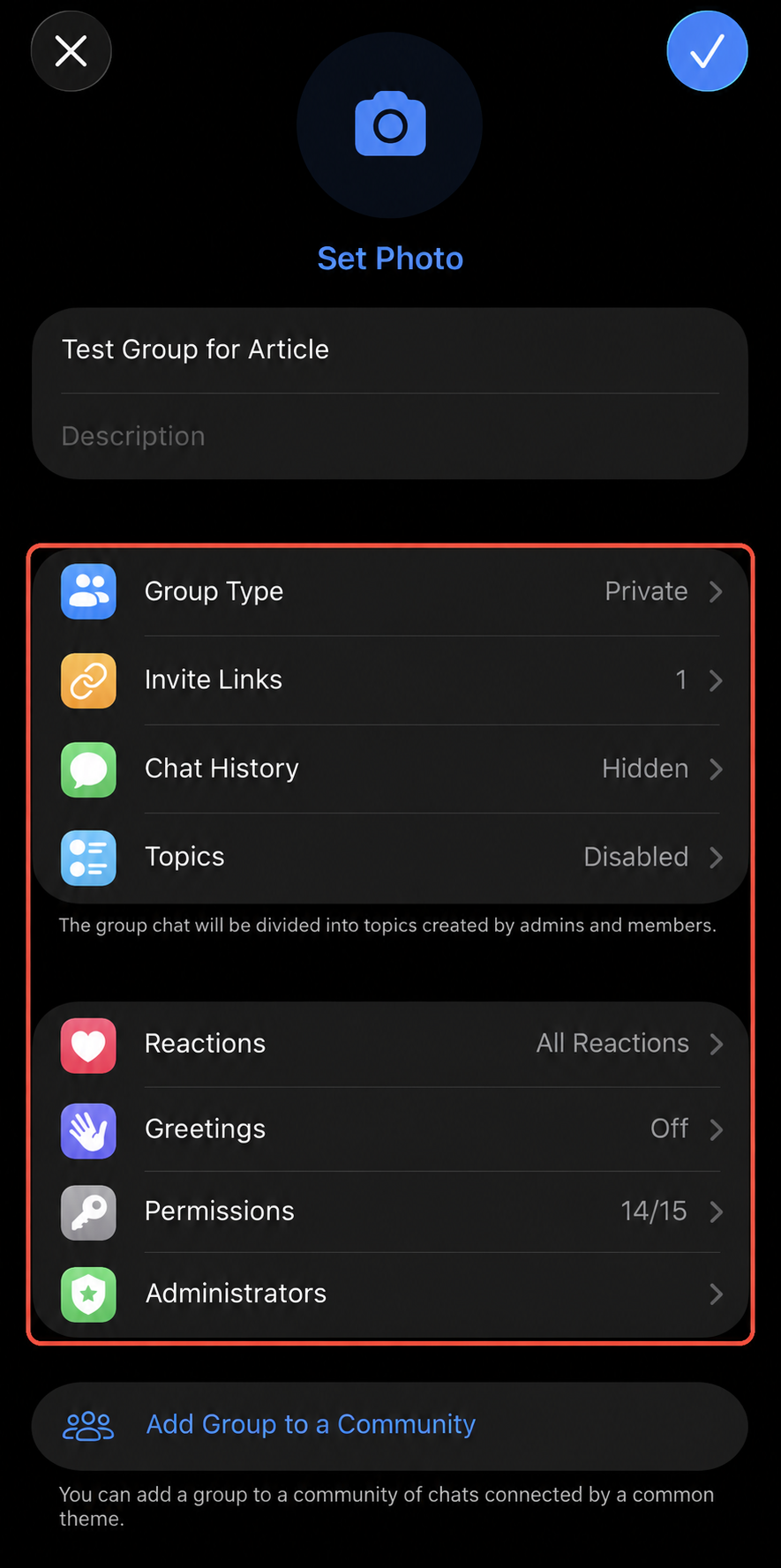
The “Edit” screen for a new group on iPhone: type, links, history, topics, permissions, and admins are all in one place, and chat history in a new group is hidden by default
| Setting | Team Chat | Client Chat | Traffic Chat |
| “Group Type” | private | private | private or public |
| “Chat History for New Members” | case by case | hide | show |
| “Restrict Saving Content” | enable | enable | as needed |
| “Slow Mode” | off | off | during peak hours |
| “Hide Members” | not needed | enable | enable |
| “Aggressive Anti-Spam” | not needed | not needed | enable |
| “Welcome Message” | links to docs | who and when replies | rules and restrictions |
Here’s what each setting controls:
- “Group Type” — private or public. Public groups get an address like t.me/name and appear in global search: anyone can find and join them. Only the owner can change the type.
- “Chat History for New Members” — whether newcomers can see previous messages. In work chats, where older messages contain sensitive information, it’s better to hide it. In community groups, show it: newcomers instantly see the chat is active.
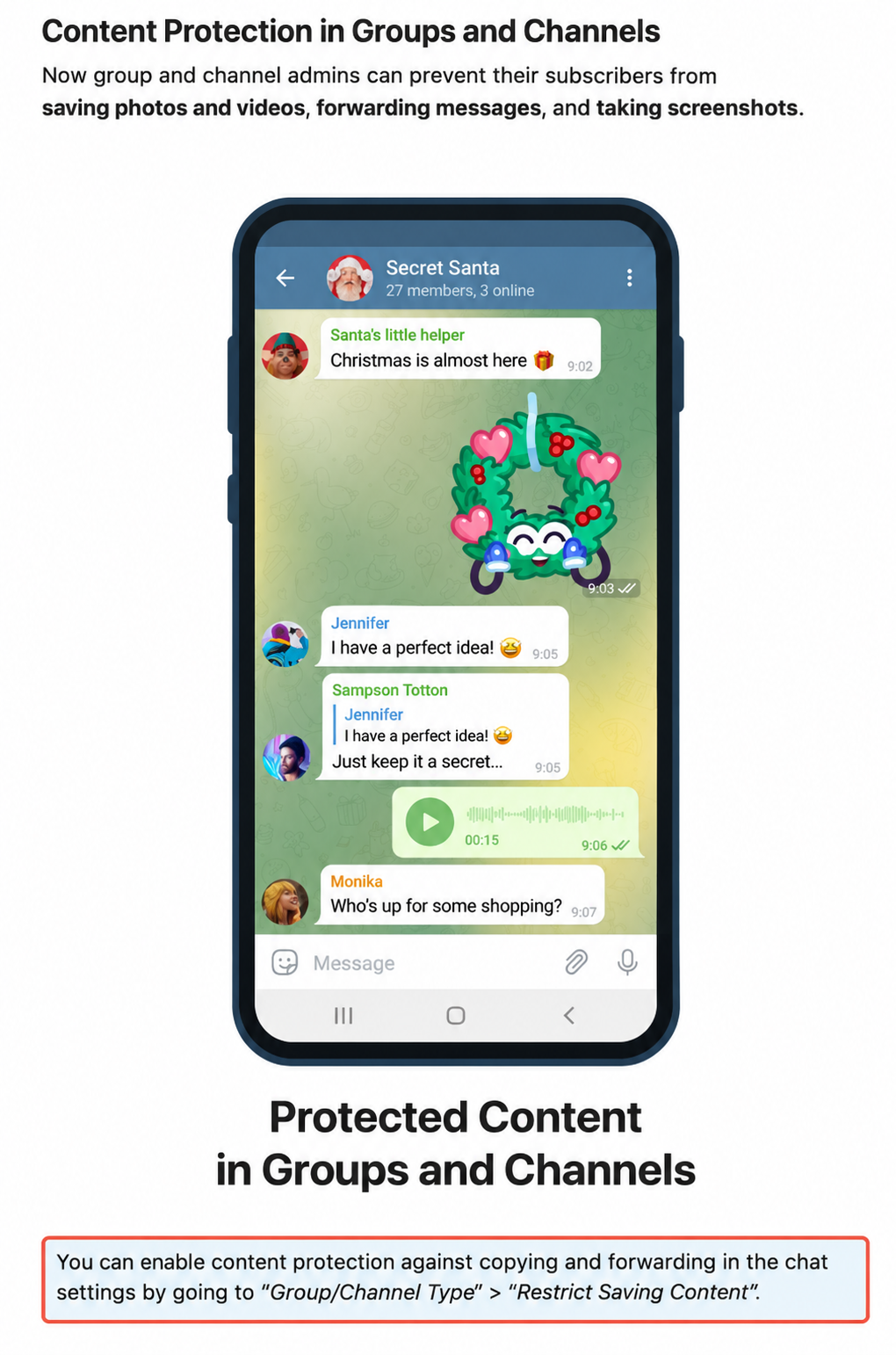
- “Restrict Saving Content” — an option inside “Group Type”; in Telegram Desktop it’s called “Content Protection”. With this enabled, messages can’t be forwarded, screenshots can’t be taken, and media can’t be saved. Only the owner can enable it.
- “Slow mode” — in “Permissions”. Each member can send one message per selected interval, and in the strictest mode — one per hour (in Russian). The timer does not apply to admins, and you can turn it on temporarily: for example, for an hour after an ad post, while the chat is flooded with people.
- “Permissions” — what members can do: write, send media and links, add people. Each media type is enabled separately, and you can make exceptions for specific users.
- Auto-delete — in the group profile, in the menu under the three-dot icon. Messages are erased after a period from one day to one year. The timer only affects new messages, and admins enable it in the group; in small private groups (in Russian), any member allowed to change the group name and photo can turn it on.
- “Hide members” — in the “Members” section, for groups with 100+ members. Only admins will be visible in the group profile, and outsiders won’t be able to scroll through your member list.
- “Aggressive Anti-Spam” — in the “Administrators” section, for groups with 200+ members (in Russian). Telegram starts filtering spam more strictly than usual, and admins mark false positives in “Recent Actions,” helping the filter learn.
- “Welcome message” — a message that only the new member sees (in Russian) when joining. This is where chat rules and links to working docs go. Set it up in the profile: “Edit” → “Welcome message.” The owner and admins with special permission (in Russian) can change it, and you can have up to three messages (in Russian).
Use invite links to control who can join.
Invite Links, Join Requests, and Referral Tracking
A group has a primary invite link. You can create additional links with an expiry date, a usage limit, or manual approval. Separate links can also help you tell where members came from (with expiration, join limits).
To create an additional invite link:
- In the group profile, click “Edit” and open “Invite links.”
- Click “Create link.”
- Set expiration, join limit, or both.
- Enable “Request Admin Approval” if you want to approve people manually.
- Copy the link or open the ⋮ menu (on iPhone — ⋯) and turn it into a QR code.
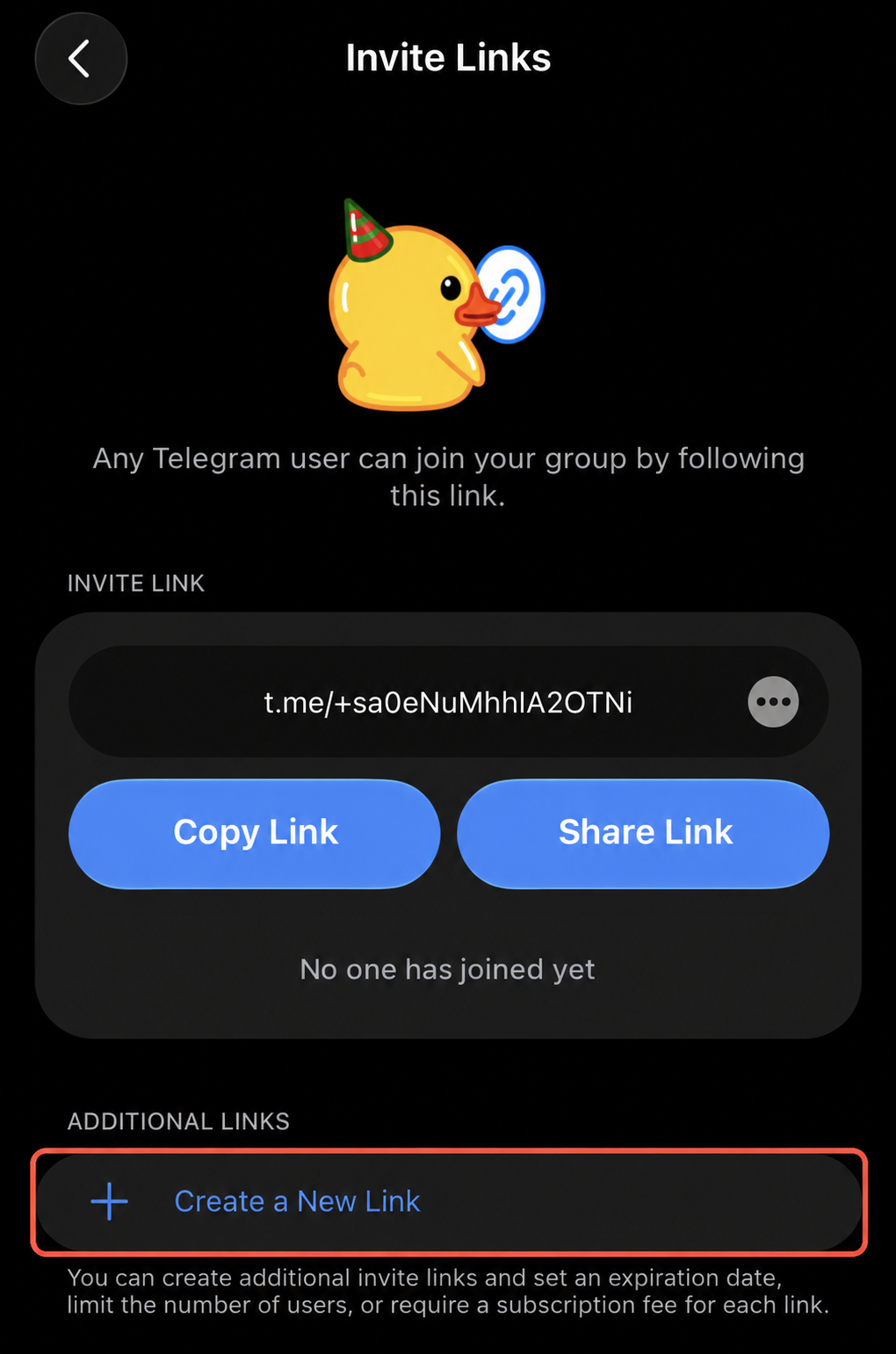
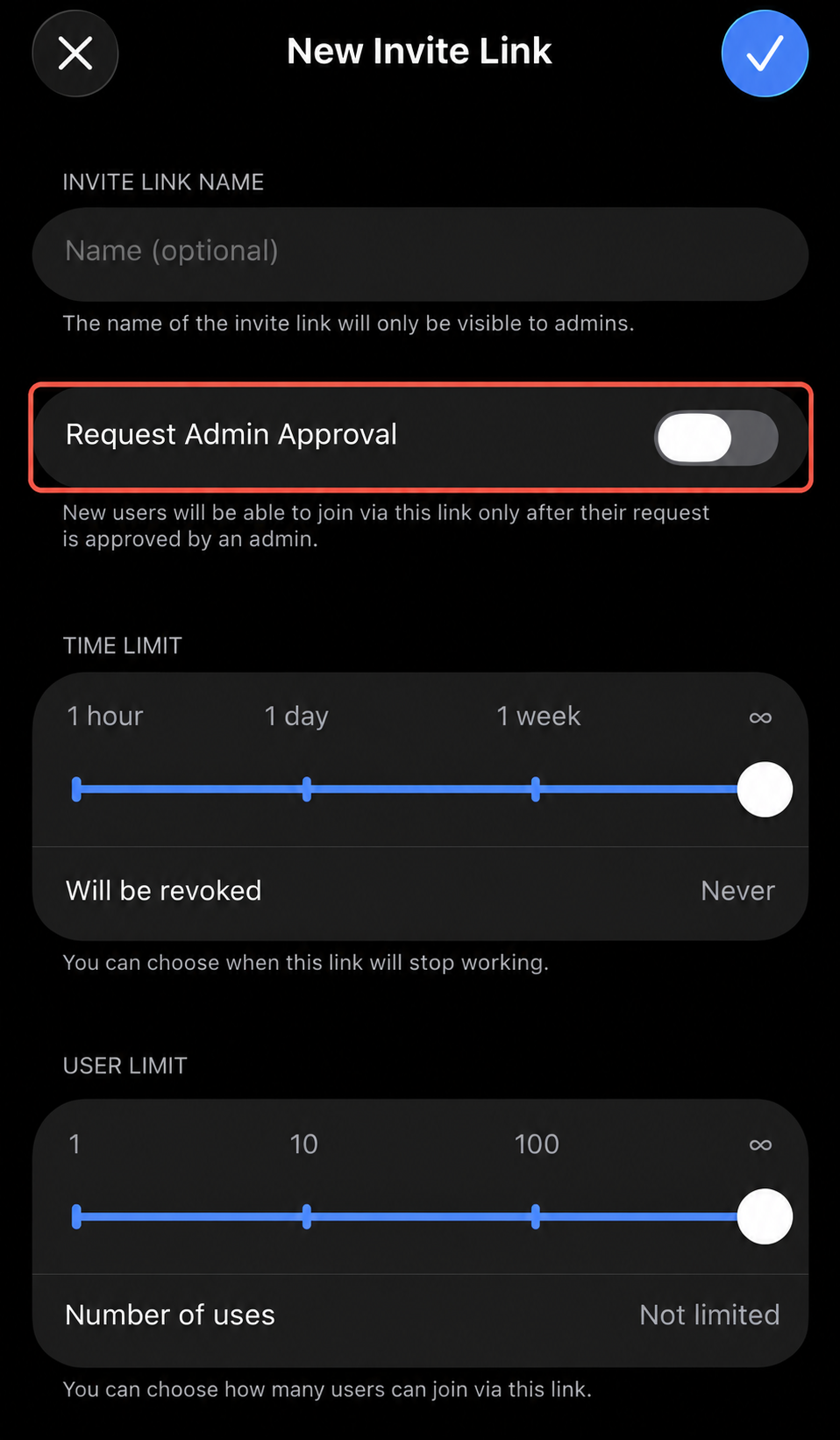
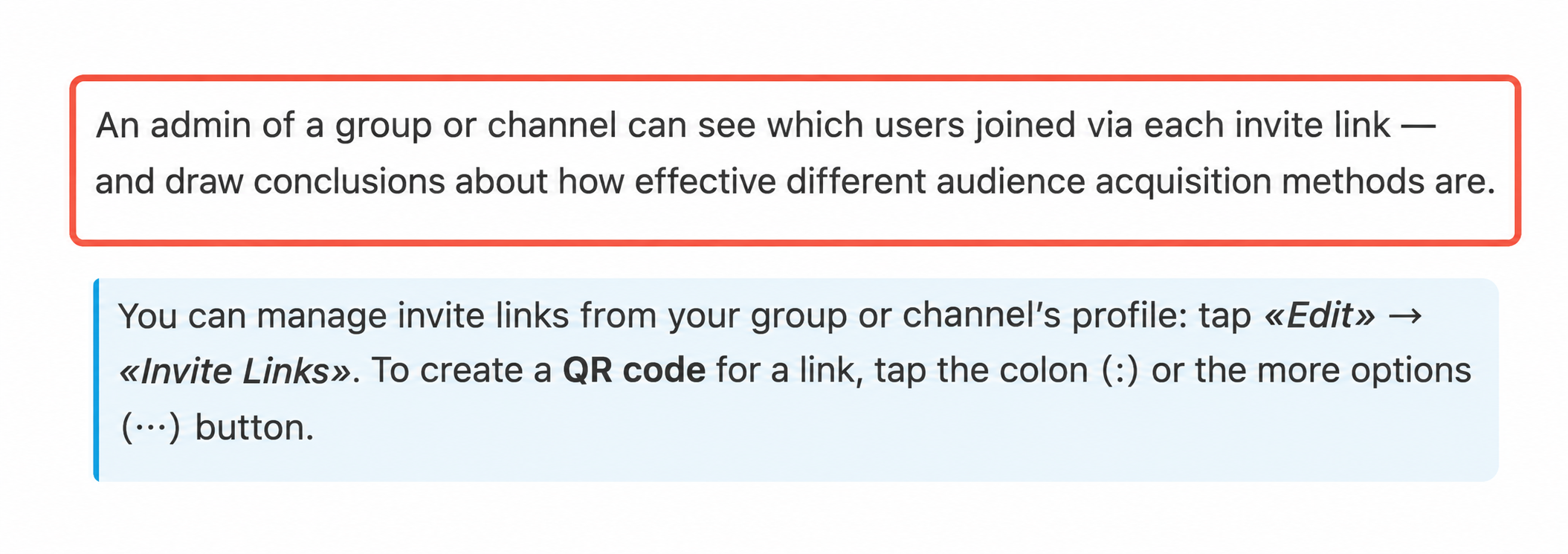
The admin can see who joined through which link (in Russian), so create a separate link for each source: ad post, creative, platform. After a week, the link list will show who brought people and who didn’t. If a link leaks, revoke it and it stops working immediately.
A link with join requests makes entry even tighter. A person doesn’t get into the chat right away, but sends a request, and admins review them from the panel at the top of the chat. Since June 2026, requests can be handled by AI bots with admin rights (in Russian): they check newcomers, for example, with a captcha.
Group Owners, Admins, and Permissions
An admin only gets the permissions you check for them. To assign: group profile → “Edit” → “Administrators” → “Add”, in Telegram Desktop — ⋯ → “Manage Group” → “Administrators”. There can be up to 50 admins (in Russian) in a group.
The main permissions in the list are:
- “Edit group profile”;
- “Delete others’ posts”;
- “Block users”;
- “Invite links”;
- “Pin messages”;
- “Assign administrators”;
- “Anonymous”.
For routine moderation, permissions to delete messages and ban users are usually enough. Give the right to add other admins only to a trusted deputy. The owner can transfer the group to an eligible admin with full permissions.
If the owner leaves the group, Telegram now prompts to immediately choose a replacement, and if the owner doesn’t do this, after a week all rights are transferred to one of the admins (in Russian). That’s why a second admin with full rights is needed from day one.
Team roles are tagged next to names starting March 2026 — a short mark, up to 16 characters (in Russian). Admin tags are highlighted by color, and members can be allowed their own tags in “Permissions”.
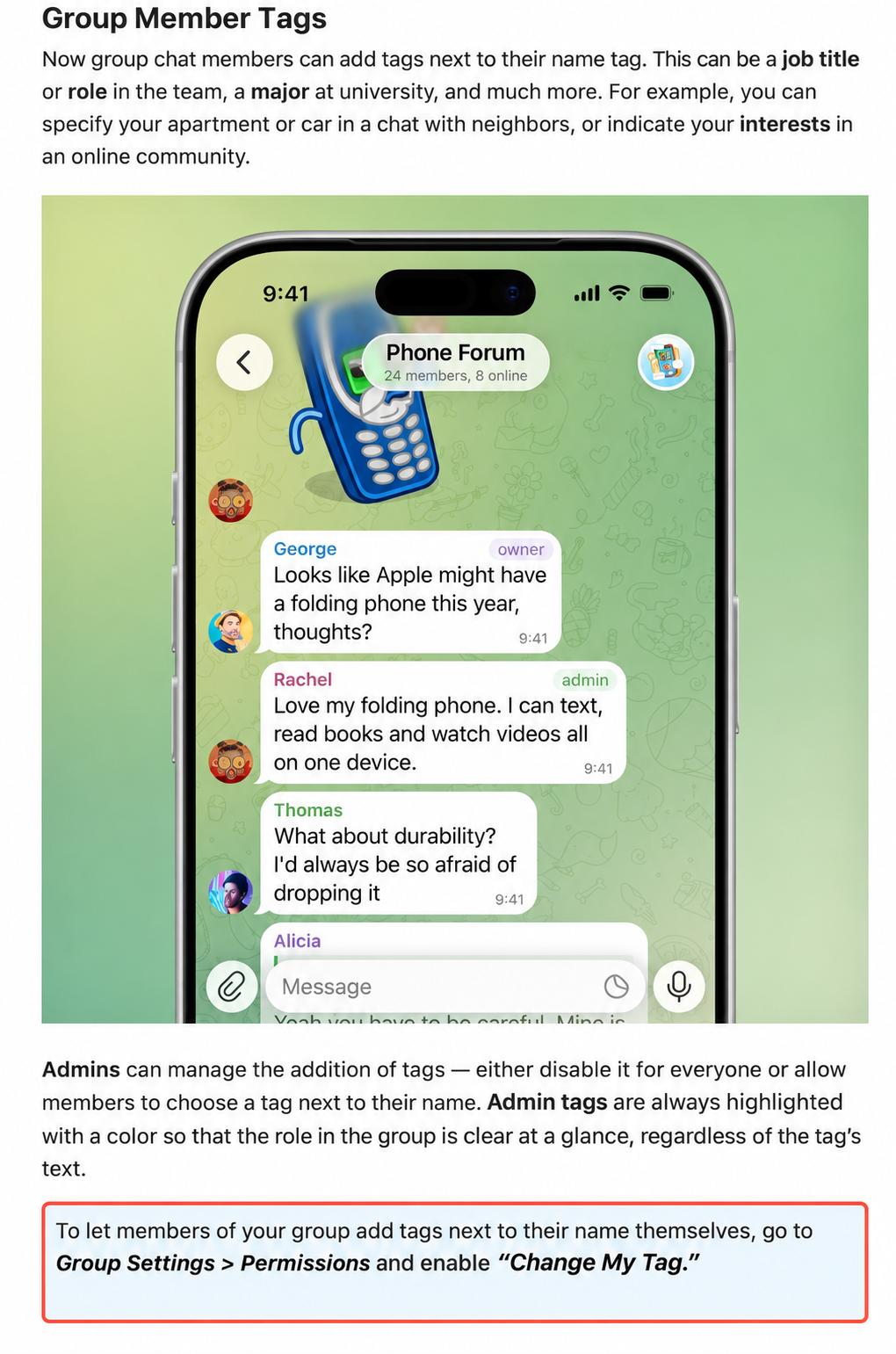
The “Anonymity” right is useful for support in client chats: such an admin is not visible in the participant list and writes on behalf of the group.
Topics and Communities
Telegram calls the separate conversations within a group Topics. Each topic has its own messages, media and notifications, like a section of a forum.
Themes are enabled in the group profile: “Edit” → “Topics”. Previously, only groups with 200 members (in Russian) could do this, now any group can. Themes are shown as tabs or a list, chosen by the owner (in Russian). Old chats and service messages go to the “General Questions” theme, which can be renamed or hidden.
For a team, these might be “Creatives”, “Offers and Rates”, “Finance”, and “Flood”, so budget discussions don’t get lost in memes. A group can have up to a million topics, and five can be pinned at the top.
If the chats have different members, topics won’t work. Starting July 2026, you can combine several groups, channels, and bots into a community: participants see all chats under one roof and can join them with a single tap. A chat within a community can be visible to everyone or hidden (in Russian) from everyone except admins and its members. You create a community in the settings of any chat, channel, or bot using the “Add to community” (in Russian) button.
Telegram group limits
A group can hold up to 200,000 people — that’s the official cap. Other limits are easier to check in the table maintained by the Telegram Info editorial team (in Russian):
| What | Limit |
| Members in a group | up to 200,000 |
| Admins | up to 50 |
| Bots | up to 20 |
| New groups and channels per day | up to 50 |
| Groups and channels you belong to | up to 500, with Premium — up to 1,000 |
| Topics in a group | up to 1,000,000 |
| Mentions in a message | up to 50, notifications go to the first 5 |
| “Hide members” | from 100 members |
| “Aggressive Anti-Spam” | from 200 members |
| Group statistics | from 500 members |
When a group nears 200,000 members, you can turn it into a broadcast group. There, there can be unlimited participants, only admins can post, but people remain group members and can chat in its video chat — that’s the difference from a channel. If you create chats in batches for different streams, you’ll hit other limits: 50 new groups per day and 500 groups and channels per account.
How to Start a Secret Chat in Telegram
A secret chat is a separate conversation between two people with end-to-end encryption. Messages from it can’t be forwarded, and if you delete them remotely, Telegram erases them for your contact as well.
How to start a secret chat:
- Android: open the contact’s profile, tap ⋮ and select “Start secret chat.” Another way — round button with a pencil → “Create secret chat” → contact.
- iPhone and iPad: contact’s profile → “More” → “Start secret chat.”
- Telegram for macOS: contact’s profile → “Start secret chat.”
| On iPhone, Android, and Mac, you start a secret chat from the contact’s profile menu, but in the new message menu this option is only available in Telegram for macOS |
A new conversation with a lock icon next to the name will appear in your chat list, while the old regular chat with this person will remain separately. You can create as many secret chats with one contact as you want.
You can send messages with a self-destruct timer. Tap the clock icon (on iPhone it’s in the input field, on Android — in the top panel) and choose the time. The countdown starts when the message is opened by the other participant. The timer only applies to messages sent after it’s set.
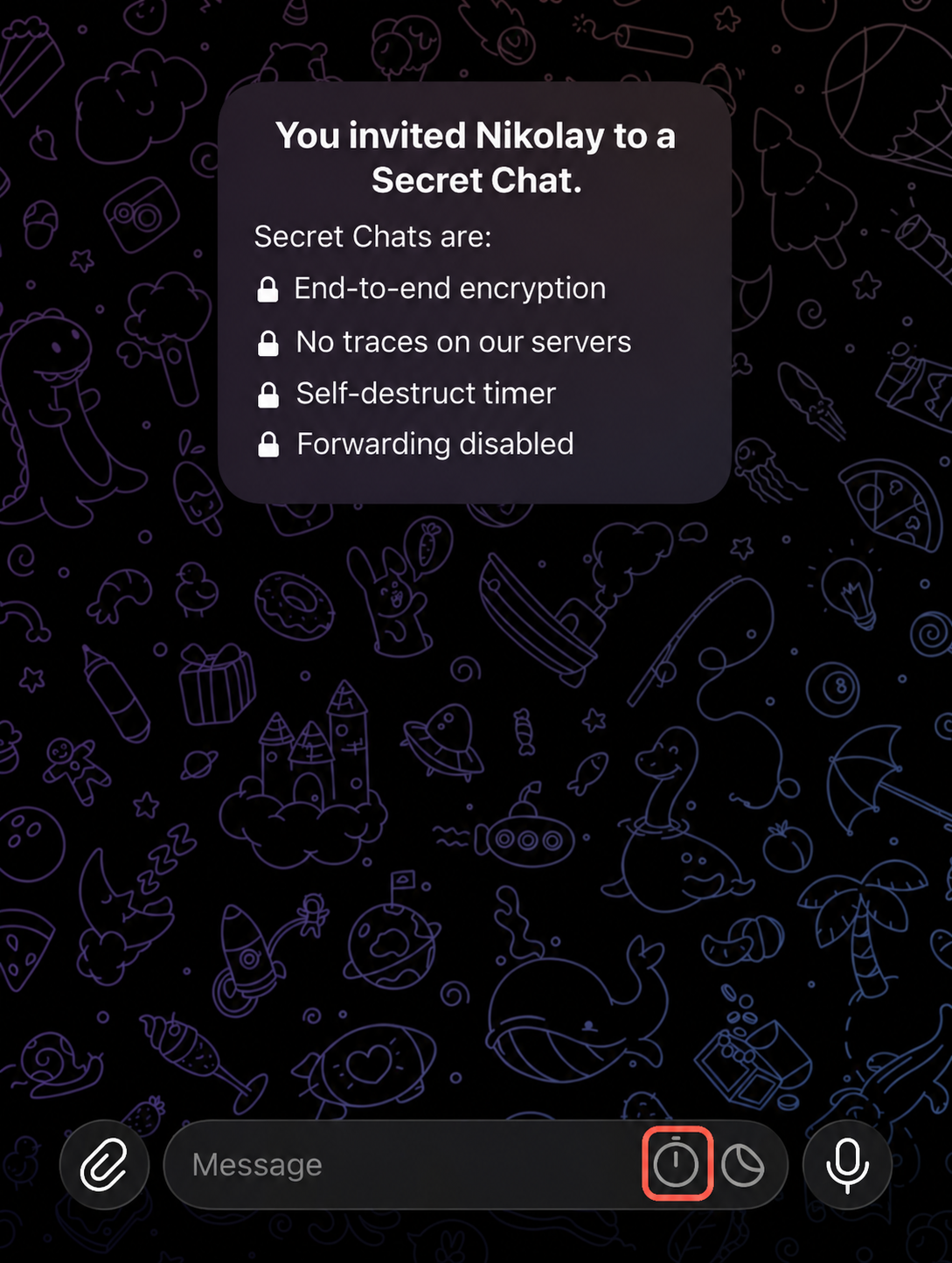
New secret chat on iPhone: the system message lists its features, and the clock icon in the input field activates the self-destruct timer
To make sure your conversation hasn’t been intercepted, open the secret chat profile and the “Encryption Key” section. Telegram draws a picture of the key: if you and your chat partner have the same image, there is no intermediary between you. It’s safest to compare in person.
Which Telegram Apps Support Secret Chats?
Secret chat can only be created on a phone, tablet, or in Telegram for macOS from macos.telegram.org. Telegram Desktop and the web version do not have this feature (in Russian) at all.
| App | Group | Secret Chat |
| Telegram for Android | yes | yes |
| Telegram for iPhone and iPad | yes | yes |
| Telegram for macOS (macos.telegram.org) | yes | yes |
| Telegram Desktop on Windows and Linux | yes | no |
| Telegram Lite on Mac | yes | no |
| Web version web.telegram.org | yes | no |
When asked if secret chat is available on a computer, the usual answer is “no.” For Windows and Linux, that’s true, but it’s more complicated with Mac. Telegram has two official apps in the Mac App Store: Telegram for macOS and Telegram Lite — which is basically Telegram Desktop for Mac. Secret chats are only available in the first one.
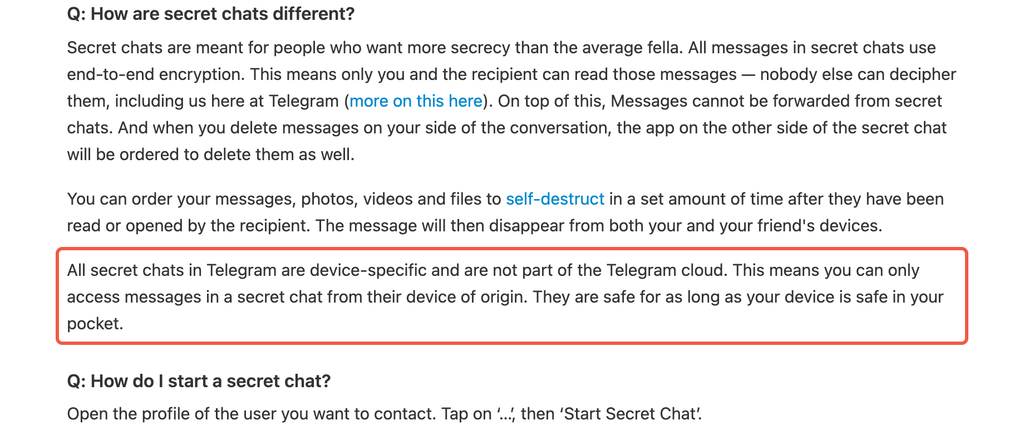
To tell the Mac apps apart, open your contact’s profile and look for Start Secret Chat.
No “Start Secret Chat” option — that means you’re using Telegram Lite or Telegram Desktop.
What Secret Chats Can and Cannot Protect
End-to-end encryption protects messages in transit. Privacy also depends on who can access the devices and what participants do with the messages.
- Groups are cloud-based. Telegram stores group chats on its servers, and they don’t have end-to-end encryption. You can’t make a team work chat secret with any setting.
- Chat lives on one device. Secret chats are tied to the device and session: if either person logs out, the chat is canceled and all messages disappear for the one who left — along with any access stored only there.
- Screenshots can’t be fully blocked. On Android, screenshots are blocked; on iPhone, the other person gets a notification. But, as Telegram itself admits, there’s no reliable way to catch screenshots on some devices, and nothing stops someone from photographing the screen with another phone.
- Protection is only as strong as the phone. According to Telegram, a secret chat is safe as long as the device is safe. If your contact’s phone is in someone else’s hands, so is your conversation.
What to use instead of a secret chat for group discussions:
- Copy restrictions in a group: no forwarding, screenshots, or saving media.
- Auto-delete — messages disappear automatically after a set period, from one day to one year.
- Protected group call: up to 200 people with end-to-end encryption, if it’s better to discuss by voice.
- Copy restrictions in personal chat — with Premium subscription, starting March 2026 (in Russian): contact’s profile → ⋯ or ⋮ → “Disable Copying”.
And for any Telegram option, Telegram recommends enabling “Two-Step Verification” and “Passcode” in privacy settings. Passcode locks Telegram even on an unlocked phone, and Two-Step Verification helps prevent access to your account from another device with just a code.
Troubleshooting Telegram Groups and Secret Chats
- Can’t add someone to a group. Their privacy settings don’t allow adding to groups. Telegram will suggest sending them an invite link — send it, and they’ll join via the link.
- No “Start Secret Chat” option. You’re using Telegram Desktop, Telegram Lite, or the web version. Start the chat from your phone, and on Mac, install Telegram for macOS.
- Secret chat disappeared or was canceled. Someone logged out — or you’re viewing from another device, but the secret chat exists only where it was started. Start a new one; old messages can’t be recovered.
- No “Hide Members” or “Aggressive Anti-Spam”. The group has fewer than 100 or 200 people. Wait until the chat grows; for now, close entry by requests.
- You can’t disable copying or make the group public. Only the owner can change these settings. Ask them to enable them or transfer rights to you.
- The group isn’t being created. You may have hit a limit: up to 50 new groups and channels per day (in Russian). Wait until the next day.
- Telegram won’t load at all. The group has nothing to do with it: the app can’t reach its servers. Proxy helps.
A Checklist for a New Telegram Group
Once you’ve created a group, review these settings:
- Decide the type: private by links or public in search.
- Decide if newcomers see old messages.
- Enable copy protection if the chat contains work data.
- Create a separate link for each source; for community groups, use links with requests.
- Appoint a second admin with full rights.
- Enable topics if the chat covers more than two subjects.
Use a Secret Chat for a one-to-one conversation you want to keep out of Telegram’s cloud. Start it on a supported mobile device or in the native macOS app.

FAQ
A chat is any conversation in Telegram: personal, group, or secret. A group is a chat for many participants, up to 200,000 people, with admins and permissions.
A new group is already private: it's not in search, entry is only by invitation or link. To manually approve people, create a link with join requests and share only that one.
No, secret chats are only between two people. The closest option is a private group with copy protection and auto-delete, but its messages are still stored in Telegram's cloud.
A secret chat is in the general chat list, with a lock icon next to the contact's name. It opens only on the device where it was started; it doesn't appear on others.
Delete a secret chat like any other: swipe or long press in the chat list. If you're logging out, tap “Clear History” first: logging out erases secret chats only for you, your contact will still have them.
Telegram restricts forwarding and may block screenshots or notify the other participant, depending on the device. It cannot prevent someone from photographing the screen with another device.
You link a comment group in the channel settings: 'Edit' → 'Discussion' → 'Create group' or select an existing one. After that, a comment button will appear under each post.

Comments (0)